Use this guide to provision a development instance of SmartRecruiters through SAP for Me.
Prerequisites
- You have a valid SmartRecruiters license.
- Your organization has access to SAP for Me with S-user credentials. Refer to SAP documentation for details on S-user access.
- Your S-user account is authorized with either Display Cloud Data or Edit Cloud Data. Refer to SAP documentation for provisioning permissions.
Context
Provisioning through SAP for Me centralizes the setup and lifecycle of SAP products in one dashboard. This process enables you to request and track SmartRecruiters development instances without switching between multiple systems.
How To Provision an Instance
- In SAP for Me, click Systems & Provisioning.

- Click the Provisioning tab and locate the Systems to be Provisioned table.
- In the search field above the table, enter SAP SmartRecruiters.
- Select SAP SmartRecruiters from the results.
- Click Start Provisioning.

- In the Start New Provisioning Request overlay, review and, if needed, update the request details.
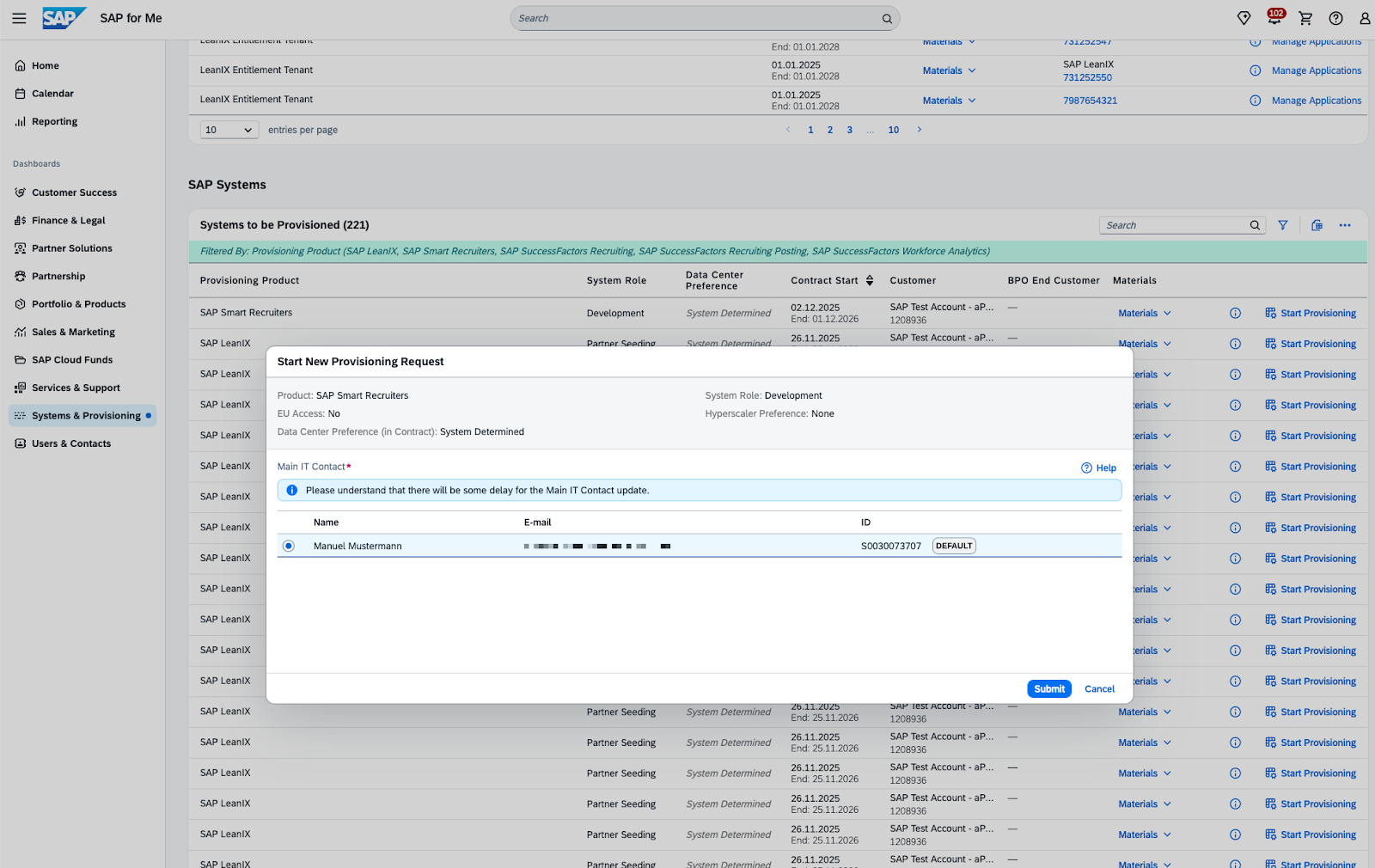
- Click Submit to start the provisioning process.
A confirmation message appears indicating your provisioning request was sent. You can monitor the status in the Provisioned Systems table.
The manual process of provisioning an instance can take a maximum of 10 days but is usually done within 3 - 5 days. Please do not request an update before the 10 day lead time.
The provisioning time depends on whether you have enabled IAS.
Post-provisioning
- SAP sends an email with the instance URL when provisioning is complete.
- You can also access the instance URL at any time in SAP for Me from the Provisioned Systems table.
- The data center location is derived from the data center where the BizX tenant is hosted, and therefore from BIZX, and used automatically.
Troubleshooting and support
If you encounter any issues during provisioning or the request does not progress as expected, contact your SAP support representative or open a support ticket via SAP for Me.